Baseus 16 in 1 4 Monitors Docking Station

Reminders
- Note 1:
This product requires full-featured USB-C port to access its full performance; casting or mirroring USB-C phones and tablets’ screen is supported. PC, old computers, USB-A ports or other interface devices are not supported. Ensure that your laptop’s USB-C port supports PD Power Delivery, DP Alt Mode and Data Transfer. Otherwise, some interface functions of the docking station can‘t be used. Consult your laptop’s manual or contact the manufacturer for this information.
- Note 2:
The Laptop has thunderbolt 3 / USB-C 3.1 Gen 2 / USB-C 3.2 Gen 2 port support power deliver, hdmi output and 10Gb/s data transfer. The USB-C 3.1 Gen 1 port: 5Gb/s (data transfer only) can't support hdmi display.
- Note 3:
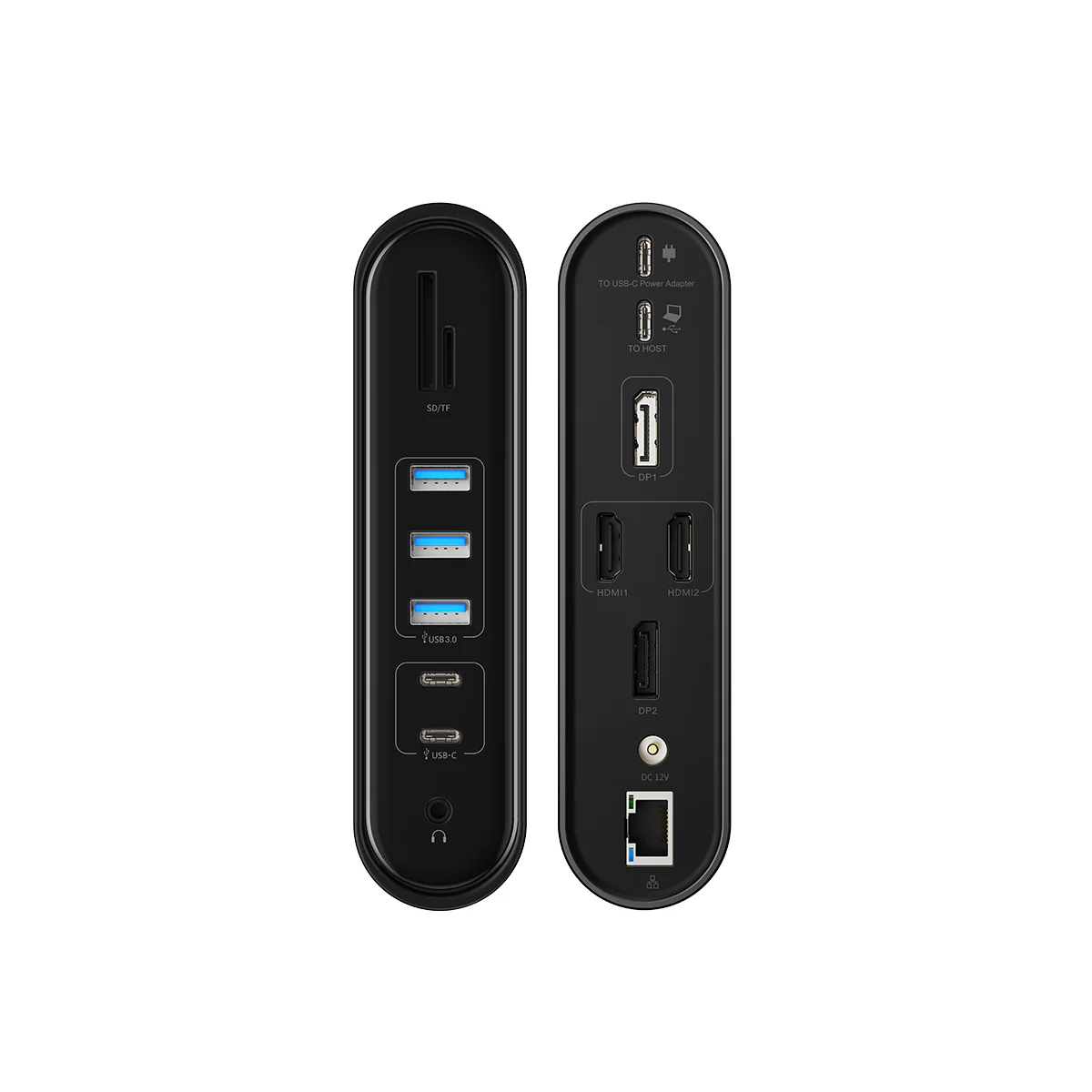
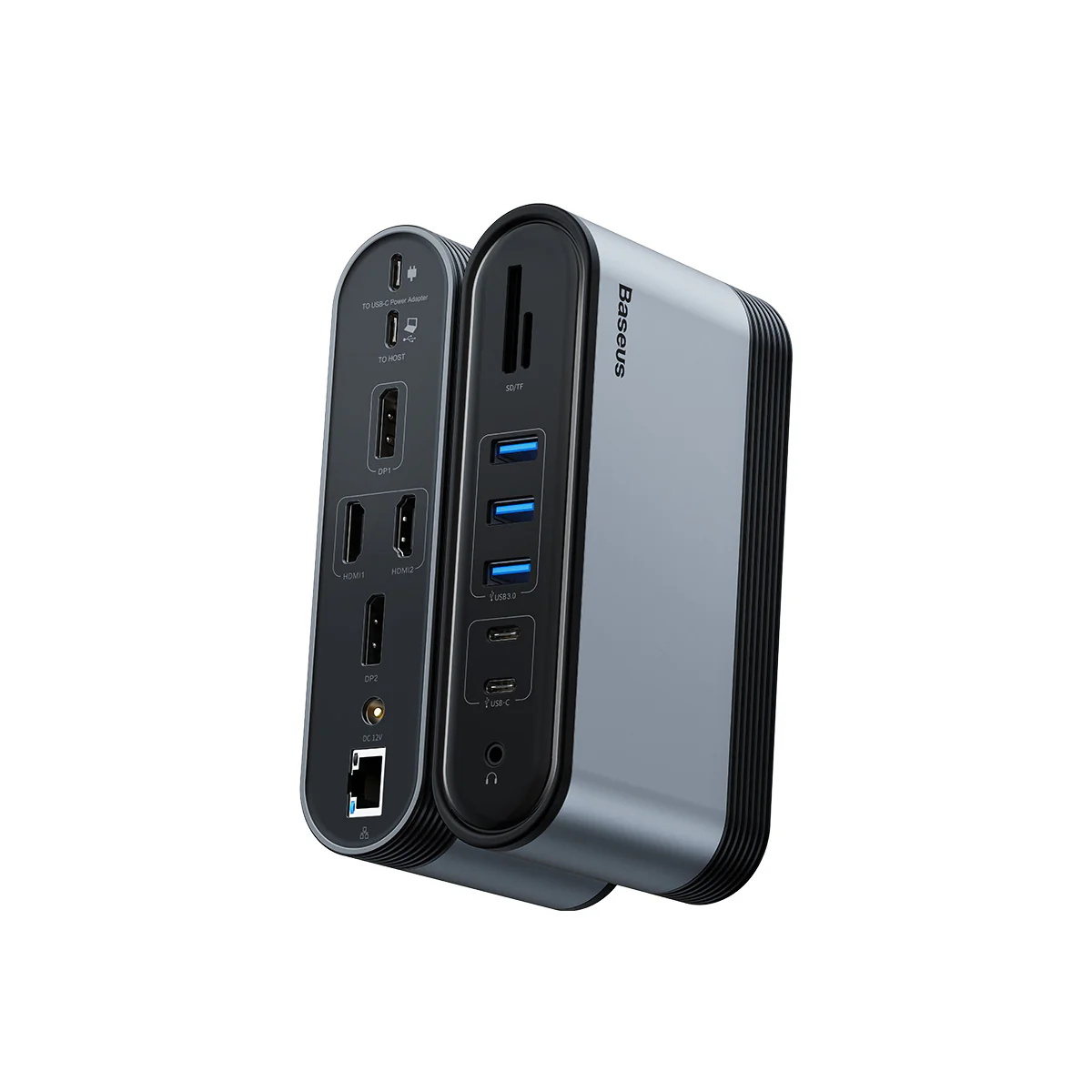
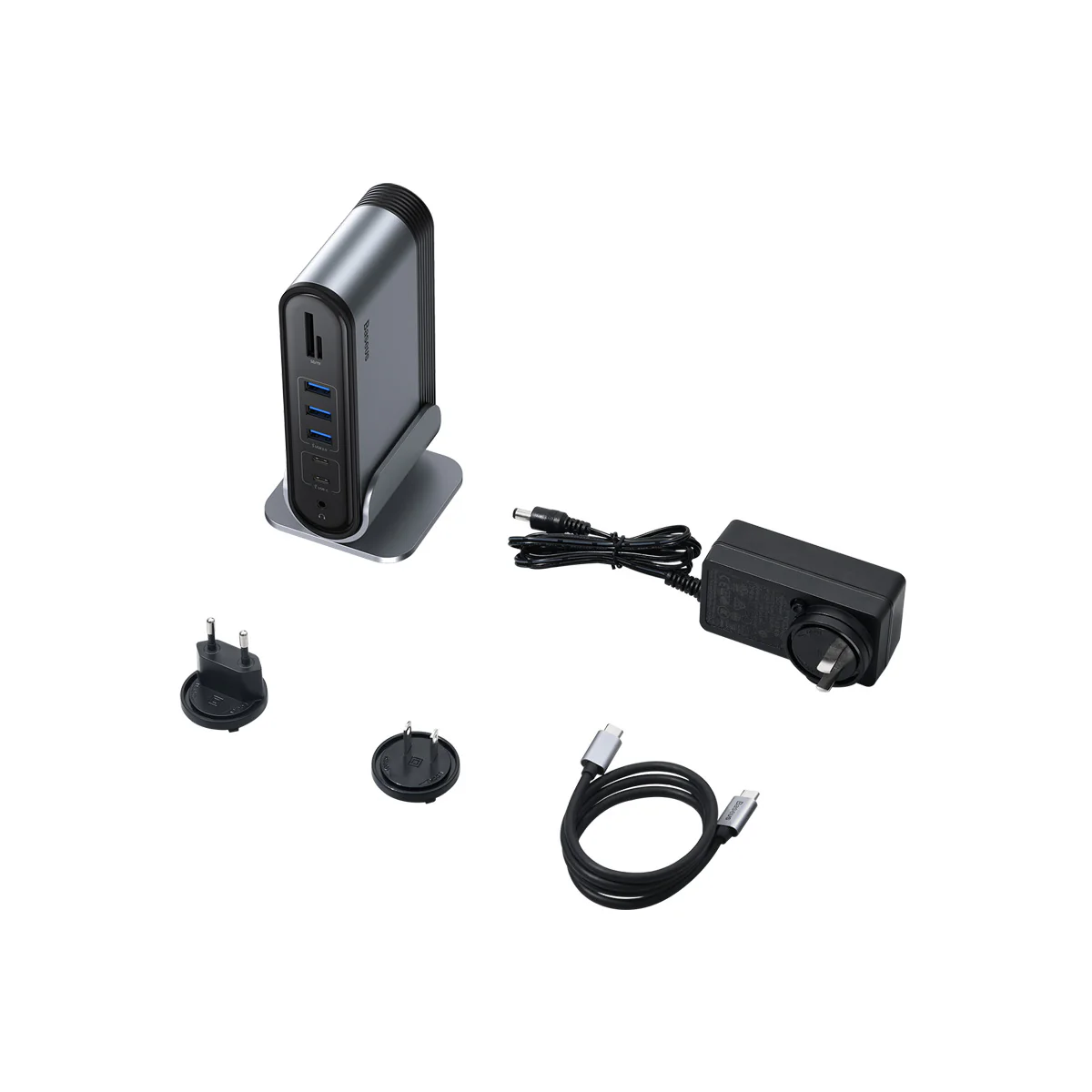
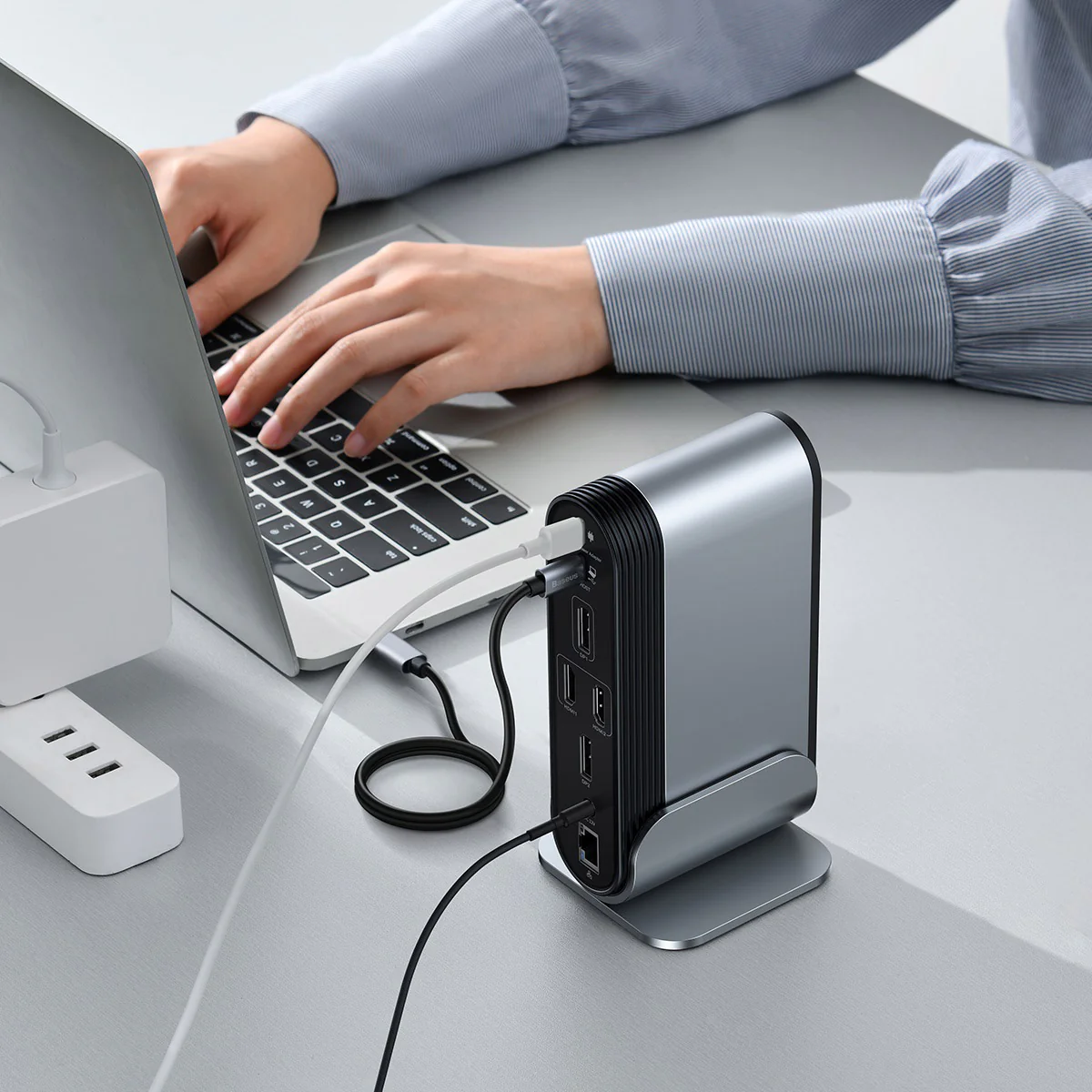
Bridge your laptop and the docking station through the plug and play “TO HOST” port with the included USB-C to C cable.
- Note 4:
Power this product with the included DC adapter to ensure the stable using of all ports.
- Note 5:
The 36W DC adapter is only designed to power this docking station; DO NOT use it to power any other devices.
- Note 6:
Plug in a 60 to 100W certified cable and wall charger to the “TO USB-C Power Adapter” port to power your laptop through this docking station.
- Note 7:
Not Compatible with Note: Not Compatible with Huawei matebookd15 / Lenovo Yoga 6 / Lenovo ideapad 320s / Ideapad S145-15IWL / Lenovo e590 / Acer Nitro 5 AN515 / Acer Aspire 5 a515-44-r1bu
- Note 6:
Plug in a 60 to 100W certified cable and wall charger to the “TO USB-C Power Adapter” port to power your laptop through this docking station.
- Note 8:
Some users' laptop upgrade from Windows 10 to Windows 11, which cause the USB-C interface of laptop cannot recognize the docking station. Please upgrade the "USB-C interface" driver of laptop.


About Casting on 4 Screen Displays
- Download and install the driver “DisplayLink” then restart your laptop to access full feature of DP ports.
- Final resolution depends on the specification supported by your laptop, cable and monitor. The dual DP and HDMI ports allow you to extend up to 4 display peripherals.
- To use DP ports, ensure that your cable has at least 1 DP connector and the other end is rather DP, VGA or DVI according to the port your monitor has.
- Extend mode on MacOS is A+B+B+C+D. This means that the interface casted through both HDMI ports (B+B) will be the same as shown in product image 3.
- Extend mode on Windows OS is A+B+C+D+E. This means that you are allowed to display 1 interface on each monitor without any duplication including your laptop’s desktop interface as shown in product image 3.
Product Information
Product Information
Shipping & Returns
Shipping & Returns
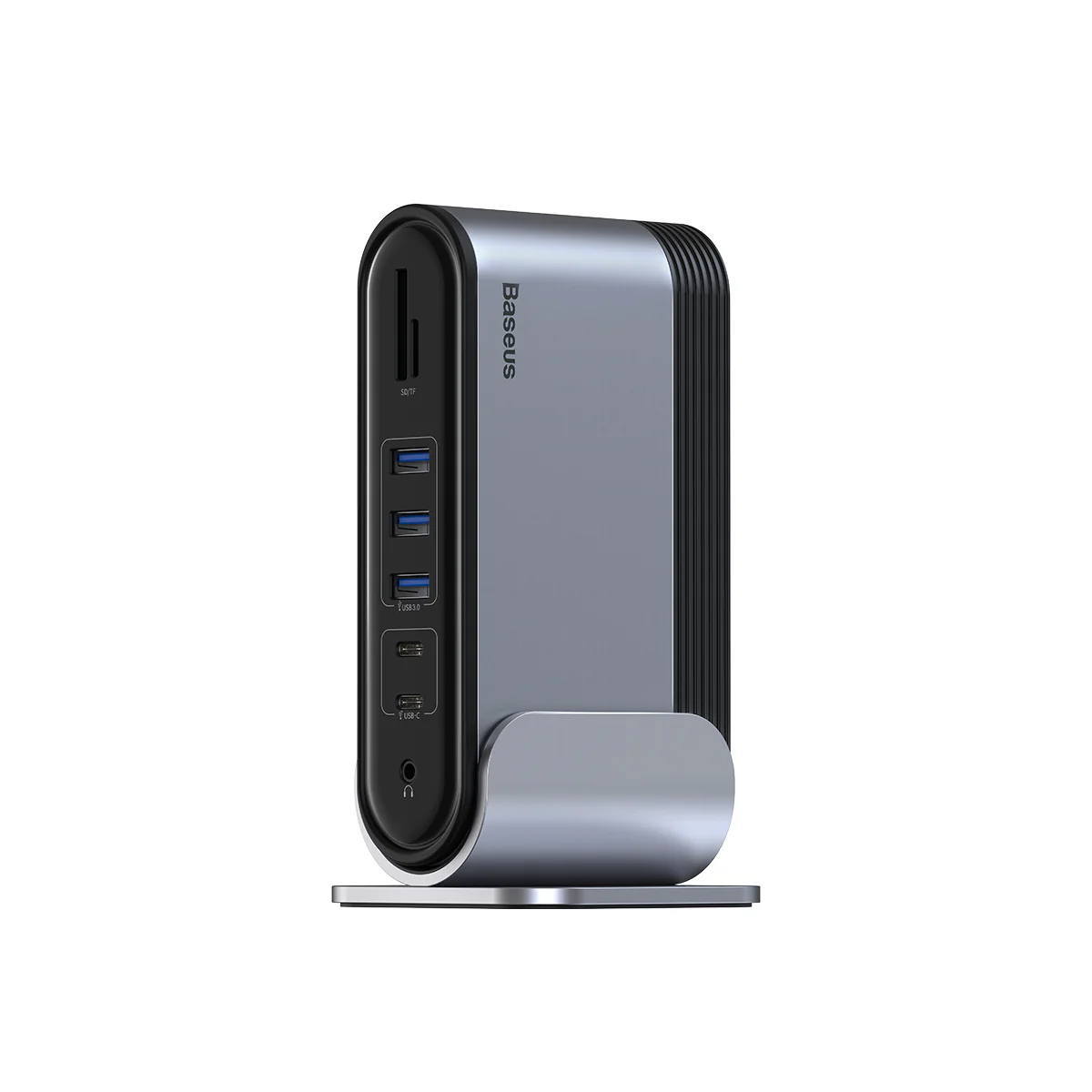
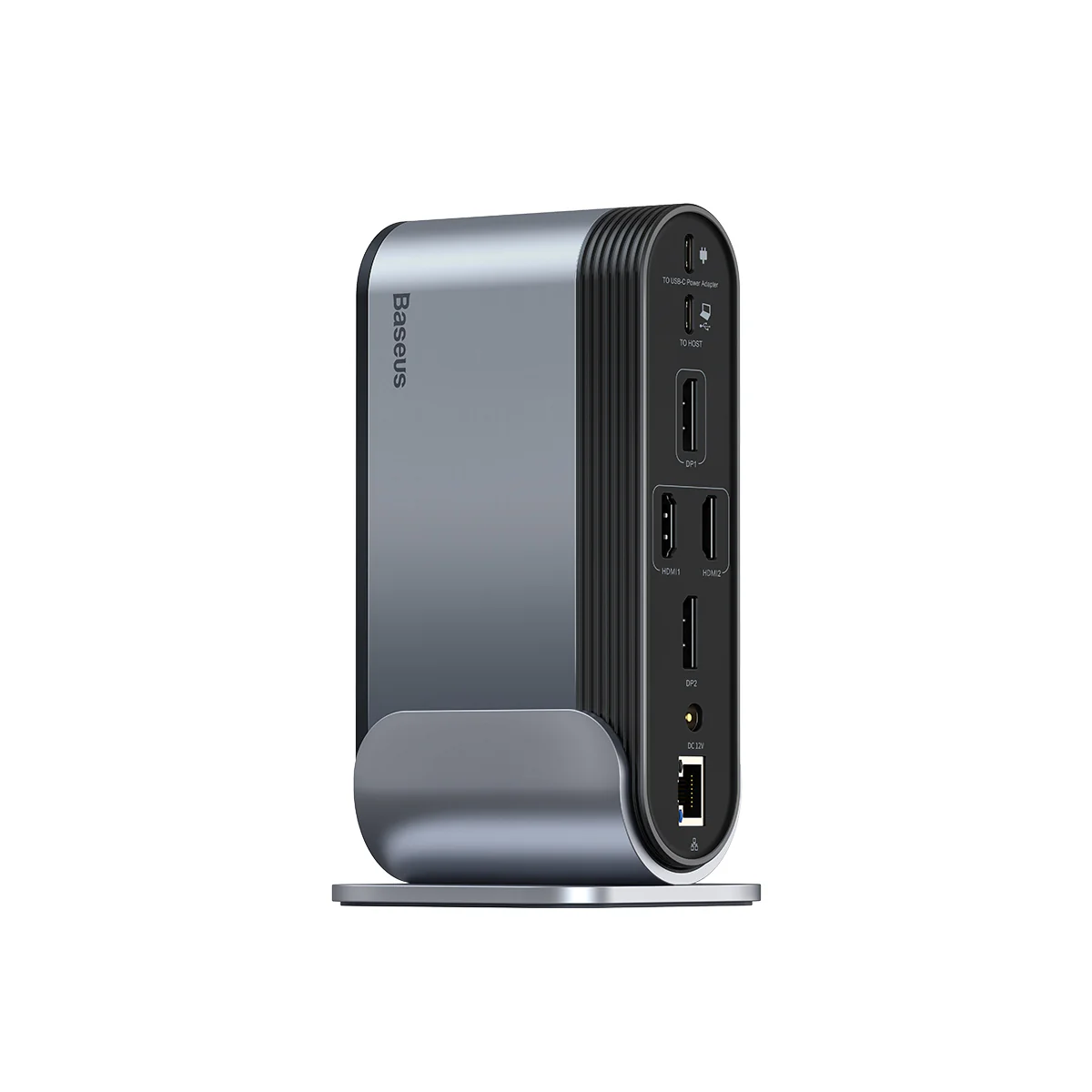
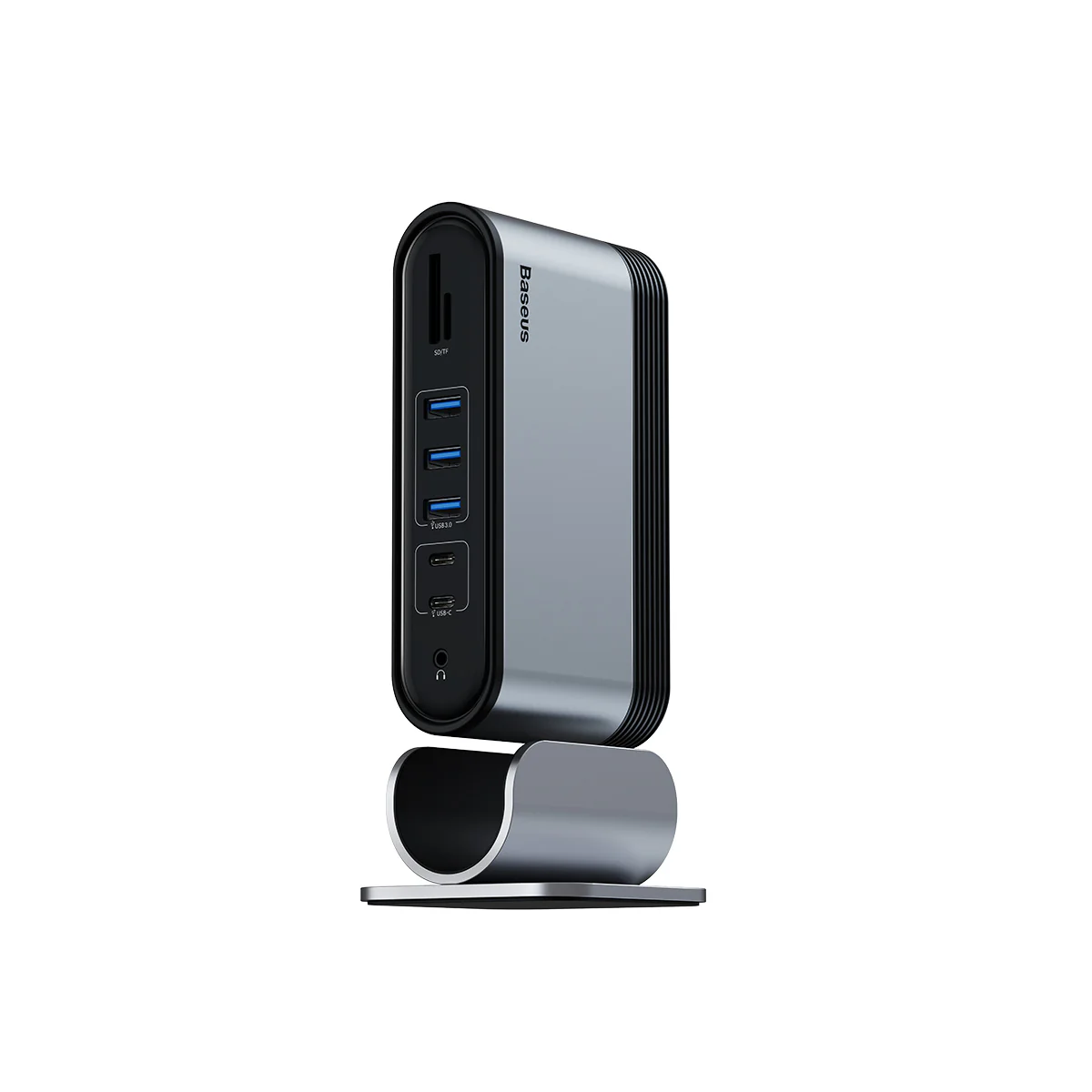
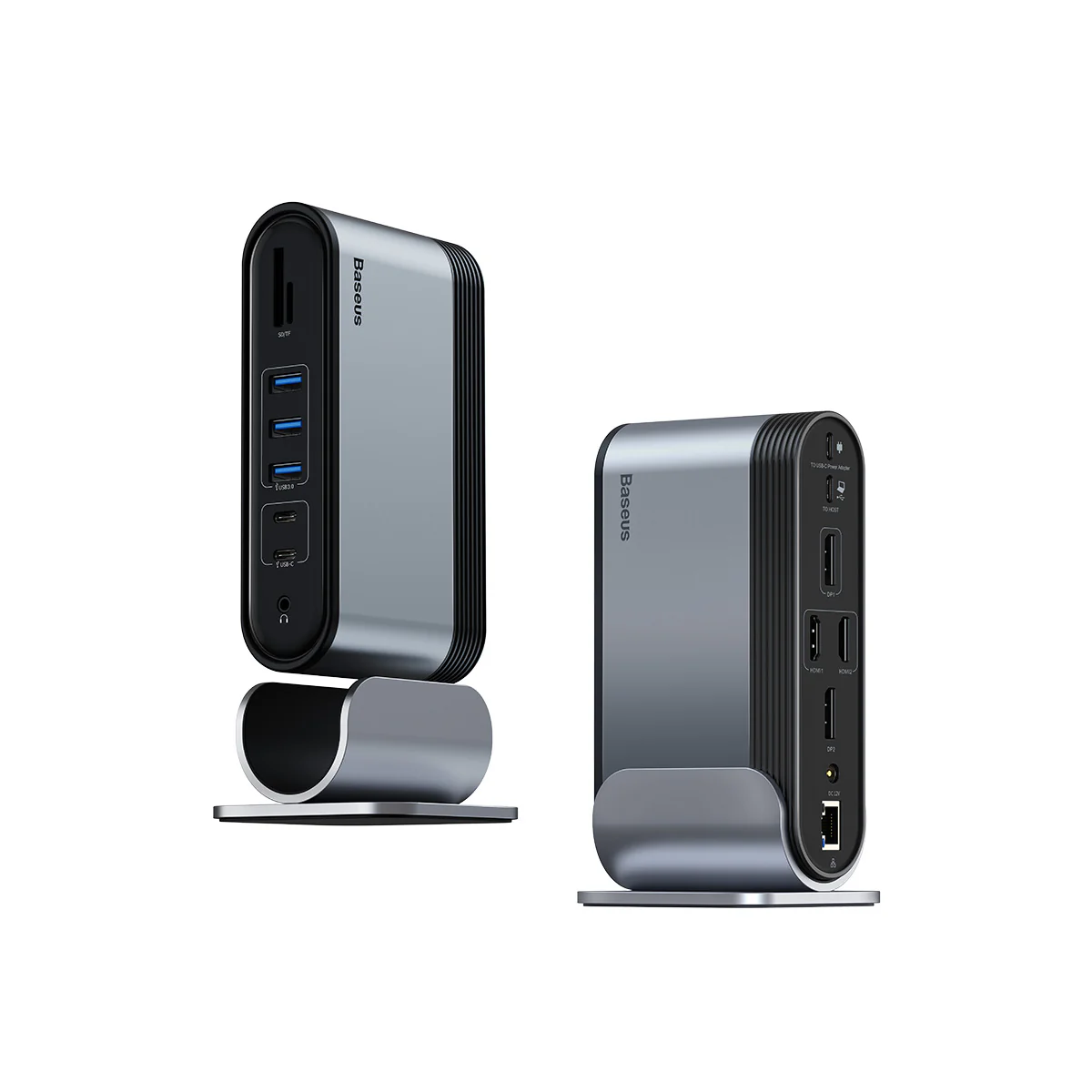
Baseus 16 in 1 4 Monitors Docking Station
Baseus 16 in 1 4 Monitors Docking Station
Reminders
- Note 1:
This product requires full-featured USB-C port to access its full performance; casting or mirroring USB-C phones and tablets’ screen is supported. PC, old computers, USB-A ports or other interface devices are not supported. Ensure that your laptop’s USB-C port supports PD Power Delivery, DP Alt Mode and Data Transfer. Otherwise, some interface functions of the docking station can‘t be used. Consult your laptop’s manual or contact the manufacturer for this information.
- Note 2:
The Laptop has thunderbolt 3 / USB-C 3.1 Gen 2 / USB-C 3.2 Gen 2 port support power deliver, hdmi output and 10Gb/s data transfer. The USB-C 3.1 Gen 1 port: 5Gb/s (data transfer only) can't support hdmi display.
- Note 3:
Bridge your laptop and the docking station through the plug and play “TO HOST” port with the included USB-C to C cable.
- Note 4:
Power this product with the included DC adapter to ensure the stable using of all ports.
- Note 5:
The 36W DC adapter is only designed to power this docking station; DO NOT use it to power any other devices.
- Note 6:
Plug in a 60 to 100W certified cable and wall charger to the “TO USB-C Power Adapter” port to power your laptop through this docking station.
- Note 7:
Not Compatible with Note: Not Compatible with Huawei matebookd15 / Lenovo Yoga 6 / Lenovo ideapad 320s / Ideapad S145-15IWL / Lenovo e590 / Acer Nitro 5 AN515 / Acer Aspire 5 a515-44-r1bu
- Note 6:
Plug in a 60 to 100W certified cable and wall charger to the “TO USB-C Power Adapter” port to power your laptop through this docking station.
- Note 8:
Some users' laptop upgrade from Windows 10 to Windows 11, which cause the USB-C interface of laptop cannot recognize the docking station. Please upgrade the "USB-C interface" driver of laptop.
About Casting on 4 Screen Displays
- Download and install the driver “DisplayLink” then restart your laptop to access full feature of DP ports.
- Final resolution depends on the specification supported by your laptop, cable and monitor. The dual DP and HDMI ports allow you to extend up to 4 display peripherals.
- To use DP ports, ensure that your cable has at least 1 DP connector and the other end is rather DP, VGA or DVI according to the port your monitor has.
- Extend mode on MacOS is A+B+B+C+D. This means that the interface casted through both HDMI ports (B+B) will be the same as shown in product image 3.
- Extend mode on Windows OS is A+B+C+D+E. This means that you are allowed to display 1 interface on each monitor without any duplication including your laptop’s desktop interface as shown in product image 3.
Product Information
Product Information
Shipping & Returns
Shipping & Returns
Description
Reminders
- Note 1:
This product requires full-featured USB-C port to access its full performance; casting or mirroring USB-C phones and tablets’ screen is supported. PC, old computers, USB-A ports or other interface devices are not supported. Ensure that your laptop’s USB-C port supports PD Power Delivery, DP Alt Mode and Data Transfer. Otherwise, some interface functions of the docking station can‘t be used. Consult your laptop’s manual or contact the manufacturer for this information.
- Note 2:
The Laptop has thunderbolt 3 / USB-C 3.1 Gen 2 / USB-C 3.2 Gen 2 port support power deliver, hdmi output and 10Gb/s data transfer. The USB-C 3.1 Gen 1 port: 5Gb/s (data transfer only) can't support hdmi display.
- Note 3:
Bridge your laptop and the docking station through the plug and play “TO HOST” port with the included USB-C to C cable.
- Note 4:
Power this product with the included DC adapter to ensure the stable using of all ports.
- Note 5:
The 36W DC adapter is only designed to power this docking station; DO NOT use it to power any other devices.
- Note 6:
Plug in a 60 to 100W certified cable and wall charger to the “TO USB-C Power Adapter” port to power your laptop through this docking station.
- Note 7:
Not Compatible with Note: Not Compatible with Huawei matebookd15 / Lenovo Yoga 6 / Lenovo ideapad 320s / Ideapad S145-15IWL / Lenovo e590 / Acer Nitro 5 AN515 / Acer Aspire 5 a515-44-r1bu
- Note 6:
Plug in a 60 to 100W certified cable and wall charger to the “TO USB-C Power Adapter” port to power your laptop through this docking station.
- Note 8:
Some users' laptop upgrade from Windows 10 to Windows 11, which cause the USB-C interface of laptop cannot recognize the docking station. Please upgrade the "USB-C interface" driver of laptop.
About Casting on 4 Screen Displays
- Download and install the driver “DisplayLink” then restart your laptop to access full feature of DP ports.
- Final resolution depends on the specification supported by your laptop, cable and monitor. The dual DP and HDMI ports allow you to extend up to 4 display peripherals.
- To use DP ports, ensure that your cable has at least 1 DP connector and the other end is rather DP, VGA or DVI according to the port your monitor has.
- Extend mode on MacOS is A+B+B+C+D. This means that the interface casted through both HDMI ports (B+B) will be the same as shown in product image 3.
- Extend mode on Windows OS is A+B+C+D+E. This means that you are allowed to display 1 interface on each monitor without any duplication including your laptop’s desktop interface as shown in product image 3.